













Breaking the Screen: How Virtual Reality Redefines User Interaction
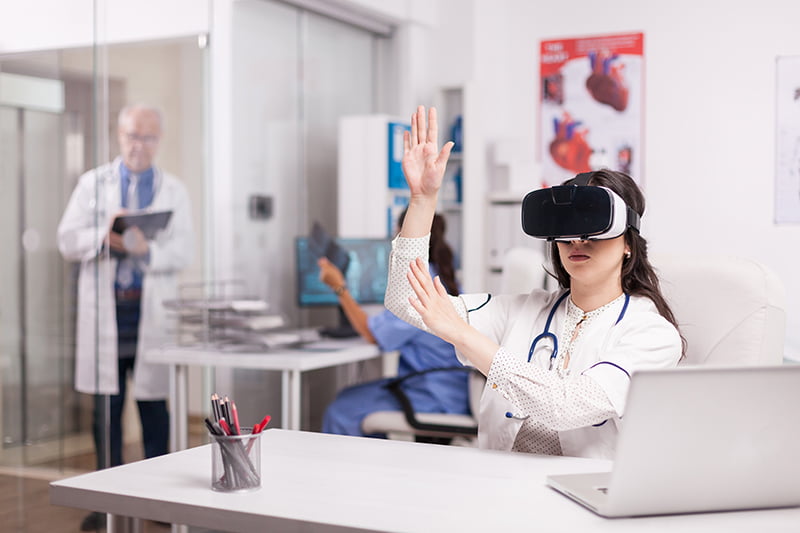
When we think about the evolution of user experience in digital products we are always limited to interaction within a screen, whether it’s a phone, tablet, or computer. VR makes us rethink how we interact with technology by placing us inside the experience.
Now we can make a technician walk through a virtual factory, engineers can manipulate full-scale 3-D prototypes that haven’t been built yet, and trainees can practice high-risk scenarios in total safety.
Thanks to Android XR, today we can build all this with the Android development tools we already know. In this blogpost we will explain the new spatial concepts Android XR brings and how to elevate your flat Android app into a walk-through world.
What is Android XR
Android XR is Google’s bet on the future of immersive technology. It extends the Android ecosystem into virtual and mixed reality, with a new OS specially designed for XR devices to allow developers create spatial applications using tools they already know.
Here’s why it matters:
- You can use all Android Tools such as Jetpack Compose, Material Design, Gemini and other Android libraries to build XR interfaces.
- We can develop in Android Studio using all its tools including a VR emulator.
- Android Xr has support for OpenXR.
- It will run on next-gen headsets, starting with Samsung’s XR headset coming in 2025.
If you’re an Android dev, this is your way into spatial computing—without needing to switch ecosystems.
Android XR Concepts
Understanding Android XR Modes
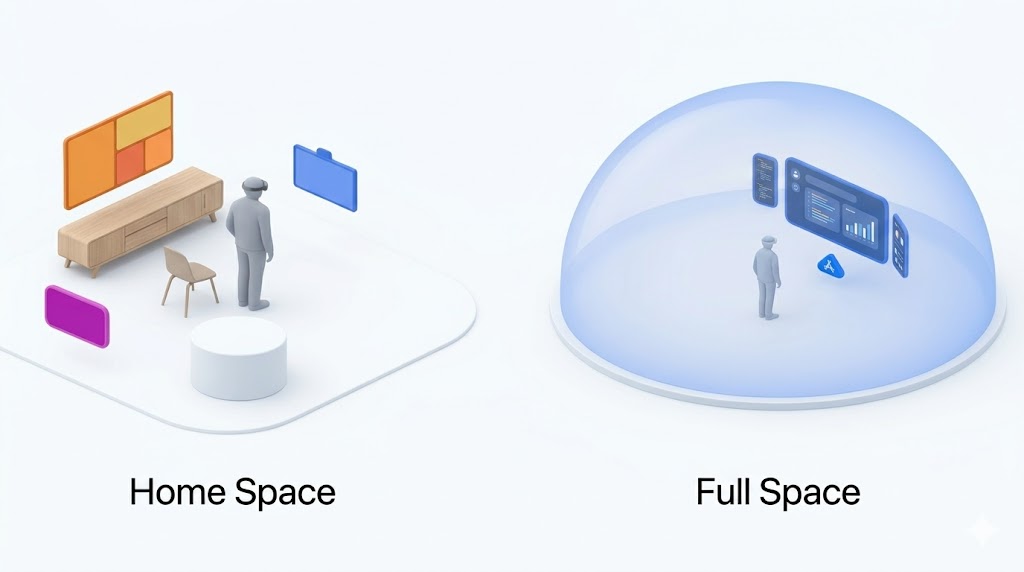
Home Space vs Full Space
When developing for Android XR, one of the first concepts to grasp is how apps are presented to the user in the virtual environment.
Android XR introduces two primary modes for interaction: Home Space and Full Space. Each mode offers a different user experience and understanding the difference is key to designing better spatial apps.
Home Space: The Default Virtual Desktop
Home Space is the starting point when you put on your headset. Think of it like a virtual desktop where multiple apps can run simultaneously side by side (or anywhere around you in 3D space), similar to having multiple windows open on your laptop.
- Each app runs inside its own panel, floating in the user’s environment.
- You don’t need to modify your existing Android apps—they can run in this mode by default.
- It’s a shared space, where users can move between apps and arrange them as they like.
Full Space: Total Immersion
In Full Space, your app takes center stage. It’s the only active app in the user’s view, and it can expand into a truly immersive spatial experience.
- You can break your UI into multiple floating panels.
- Add 3D spatial components that respond to the user’s position, gestures, or interactions.
- This mode feels more like entering a VR world designed specifically for your app.
These modes can either be user-selectable or enforced to use one of the two.
Splitting Your UI in 3D: Introducing Subspaces
In a traditional Android app, we think in terms of screens, views, and containers. But in Android XR, things go a step further, literally.
To organize spatial content in 3D space, Android XR introduces the concept of Subspaces.
What is a Subspace?
A Subspace is like a mini 3D stage inside your app. It’s a defined volume of space where you can:
- Arrange spatial UI panels
- Place 3D models
- Create immersive layouts that surround or respond to the user
Think of it as a container for spatial content that only exists when your app is running in Full Space.
Spatial Panels: See It
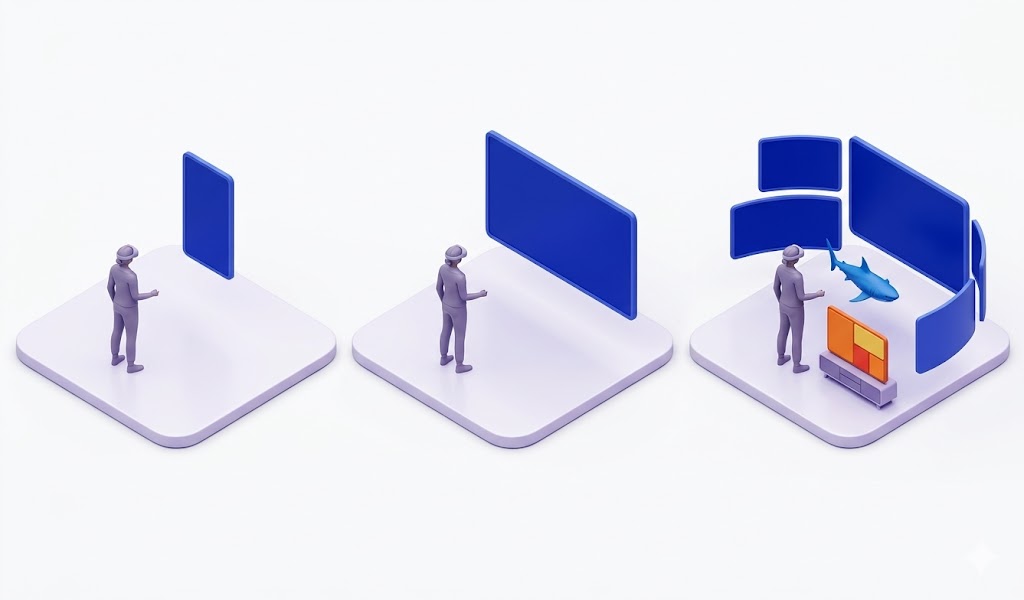
Think of a Spatial Panel as a “virtual tablet” you can pin anywhere in 3-D space.
Why Panels Matter
Spatial Panels are the primary building blocks of an Android XR app.
Each panel is a self-contained surface (rectangular by default) that can host:
- Jetpack Compose layouts (rows, columns, lazy lists, dialogs).
- Interactive Components, buttons, sliders, text fields with full focus & input handling.
- Immersive content
If you’re coming from traditional Compose, think of Spatial Panels as the “containers” where you can lay out your UI just like using Rows and Columns but instead of positioning elements inside a screen, you’re positioning them in space around the user.
Spatial Compose
One of the biggest advantages of developing for Android XR is that you don’t have to learn a completely new layout system from scratch. If you’re already familiar with Jetpack Compose, you’ll feel right at home.
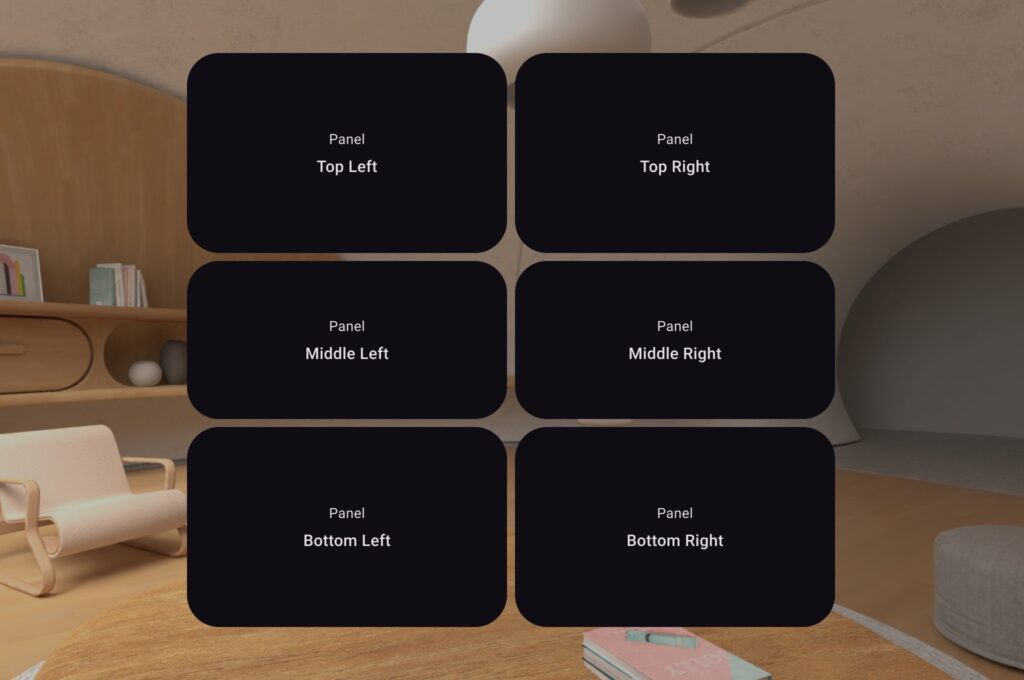
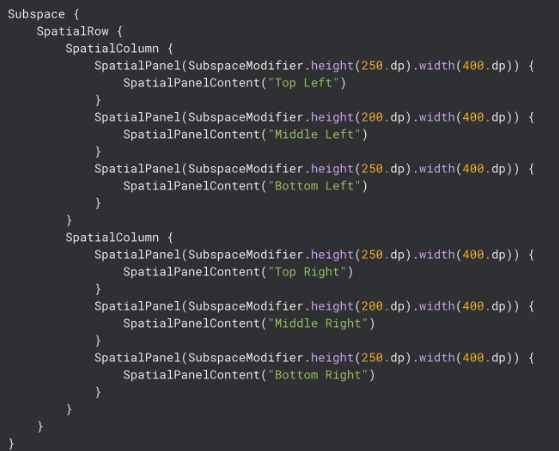
In the example below, we’re using SpatialRow and SpatialColumn to organize panels in 3D space, exactly like we would use Row and Column to structure a UI in 2D.
What’s going on here?
- We’re creating a top-level SpatialRow, which arranges two SpatialColumns side by side.
- Each column holds three SpatialPanels stacked vertically.
- That gives us a 3×2 grid layout with labels like “Top Left”, “Middle Left”, “Bottom Left”, and so on.
- Each SpatialPanel uses a SubspaceModifier to define its height and width, just like you would with Modifier.height() and Modifier.width() in Compose.
SubspaceModifier
Just like you use Modifier in Jetpack Compose to tweak layout and behavior, in Android XR you use SubspaceModifier to control how your Spatial Panels behave and appear in 3D space.
These modifiers go beyond simple layout they define how a panel moves, scales, rotates, and blends into the surrounding environment.
Here are some key properties:
- curveRadius() → Make your panels wrap around the user instead of being flat. This creates a more immersive, encompassing experience, great for dashboards or multi-panel layouts.
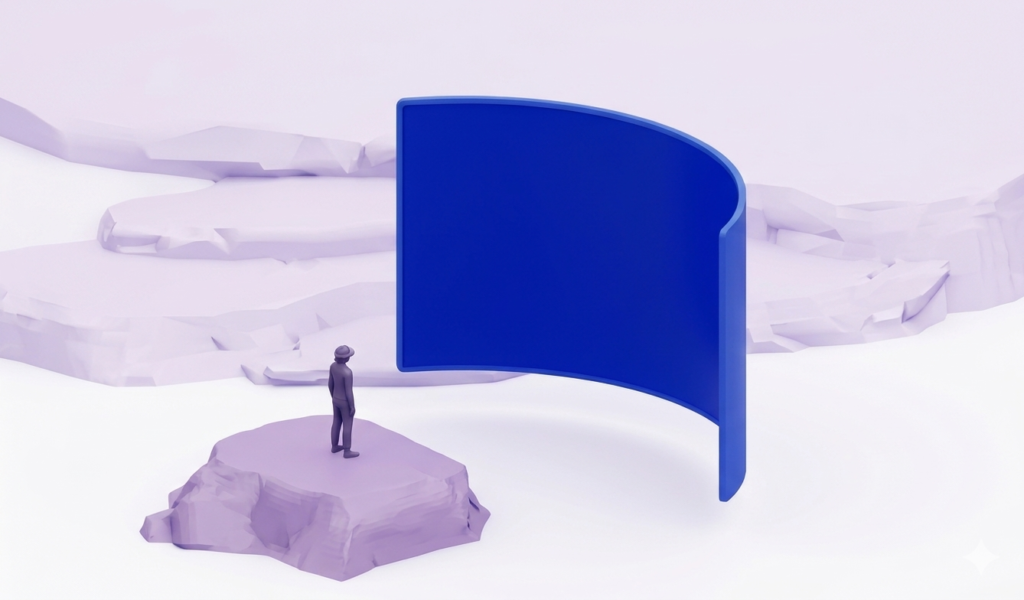
- movable(true) → As simple as adding this modifier the user will be able to grab and move the panel around to a diferente spot
- resizable(true)→ Let users expand the panel or decrease the panel size
Orbiters: Floating UI
Even in a fully spatial app, users still need quick, intuitive access to core UI elements. That’s where Orbiters come in.
Orbiters are floating UI elements anchored to spatial content. They’re typically used to control or interact with panels or 3D entities, providing quick access to key actions while keeping the main content unobstructed.
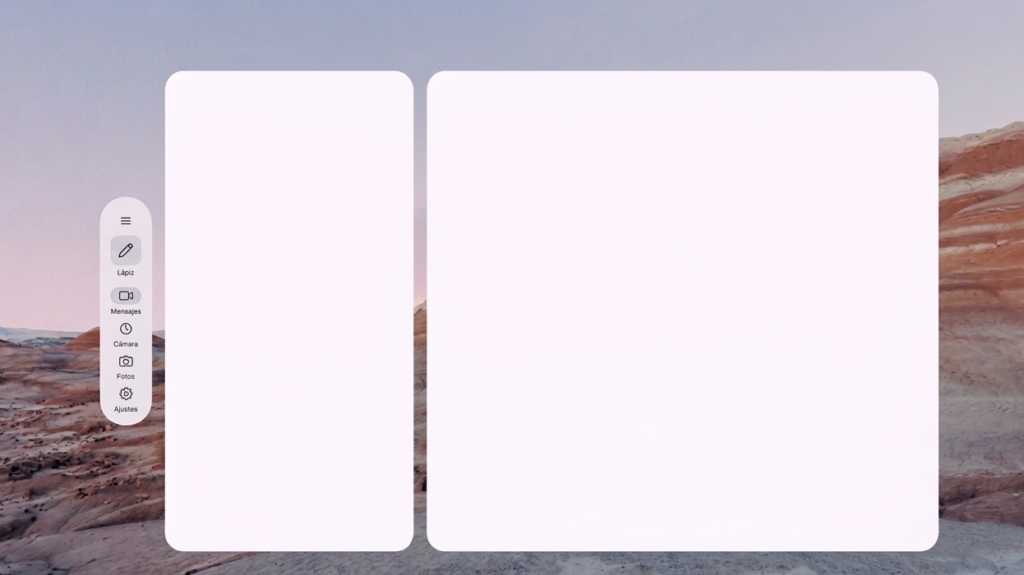
Orbiter also haves their own set of modifiers Params:
- position()
- The edge of the orbiter. Use OrbiterEdge. Top or OrbiterEdge. Bottom.
- offset()
- The offset of the orbiter based on the outer edge of the orbiter.
- alignment()
- The alignment of the orbiter. Use Alignment. CenterHorizontally or Alignment. Start or Alignment. End.
- settings()
- The settings for the orbiter.
- shouldRenderInNonSpatial = boolean
- shape()
- The shape of this Orbiter when it is rendered in 3D space.
- content
- The content of the orbiter. Example:
Orbiter(position = OrbiterEdge. Top, offset = 10.dp) { Text(“This is a top edge Orbiter”) }
- The content of the orbiter. Example:
3D Models: Touch It
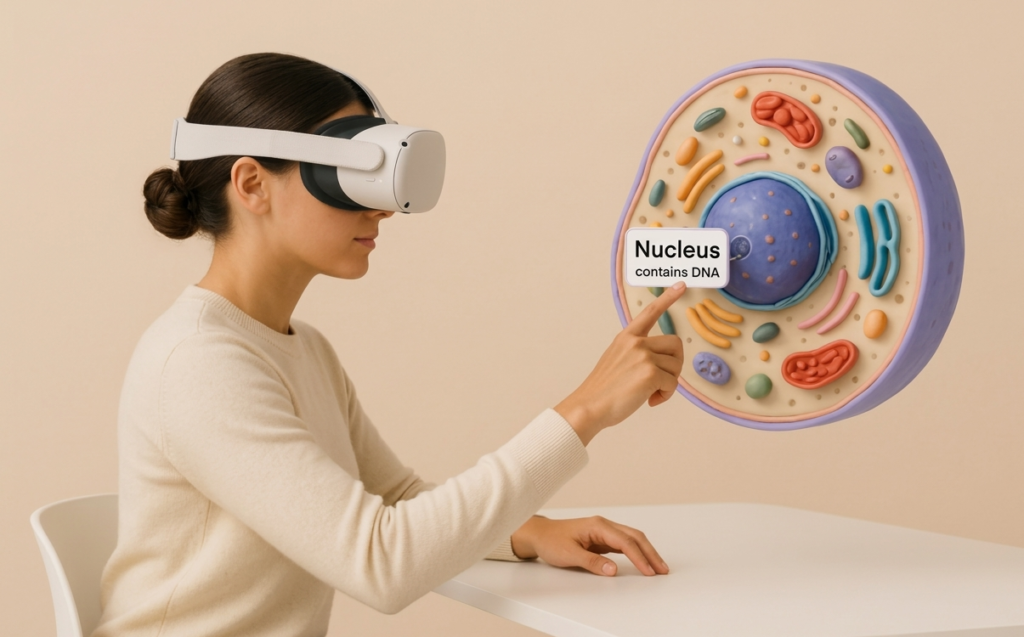
Digitally rendered objects that possess real-world depth and volume invite users to rotate, and inspect them as if they were physical items on a desk.
Giving learners this kind of natural feeling interaction dramatically increases both attention and immersion. Picture, for instance, a biology lesson: students stand in front of a 3-D cell, they can zoom in and tap on each organelle to reveal functions and animations. This turns passive viewing into active discovery and adding a layer of value that traditional media simply can’t match.
General formats as .glTF or .glb Blender, Maya, Spline and others can be imported to your app.
3D Sound: See It, Touch It & Hear It:
Spatial audio reproduces human hearing in 3D space, making sounds seem to originate from any direction, even overhead or beneath the listener.
Apps that were never made for Android XR gain this effect automatically: the platform anchors every sound to the floating panel where the app’s UI is drawn. Walk across the room and the timer click from a clock app will still ring from that panel’s new spot, with distance based volume and filtering applied for believable depth when moving around the 3D space.
ARCore for Jetpack XR (Augmented reality)
Let your app understand the real world so it can blend virtual content with it.
While Jetpack XR handles rendering, ARCore feeds your app the raw understanding of the physical space:
- Motion tracking – > Precise head pose and controller pose, that can be used to attach entities and models.
- Scene primitives –> Detect flat surfaces in the user’s environment and provide information on them such as their pose, size, and orientation. This can help your app find surfaces like tables to place objects on.
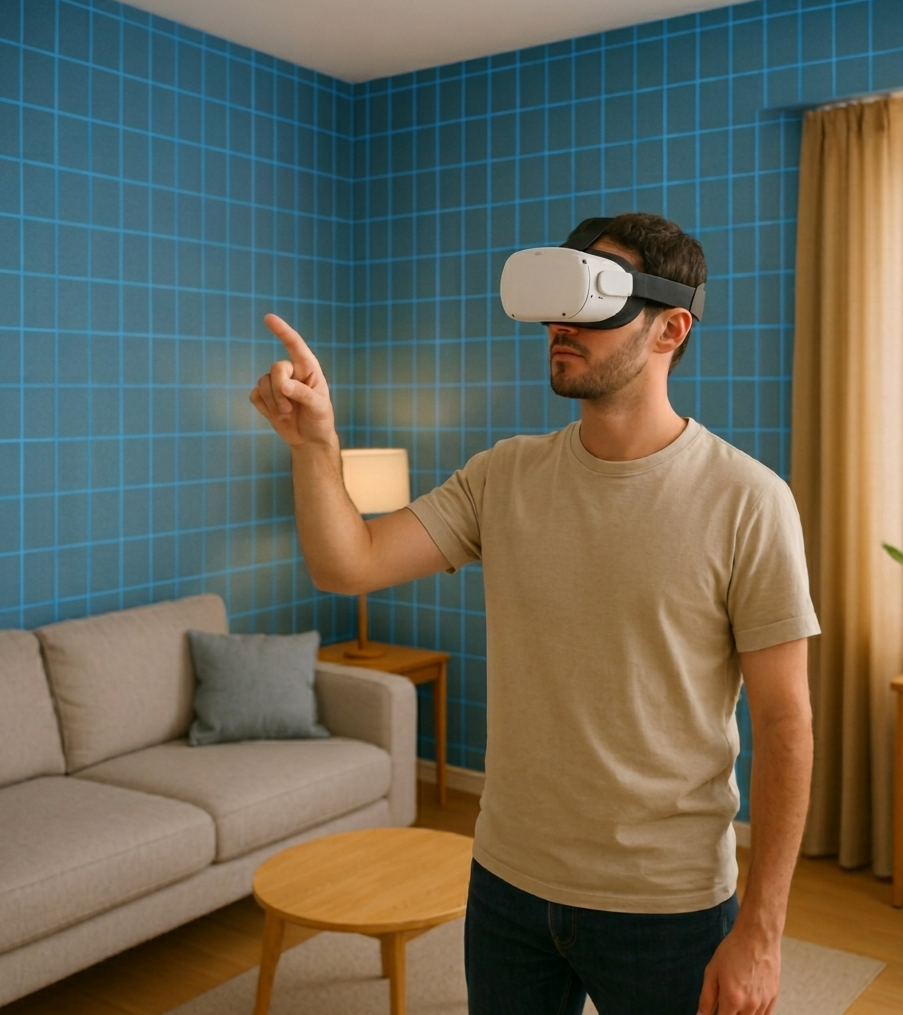
- Anchors –> An Anchor describes a fixed location and orientation in the real world. Attaching an object to an anchor helps objects appear realistically placed in the real world.
Add Android XR to a current app
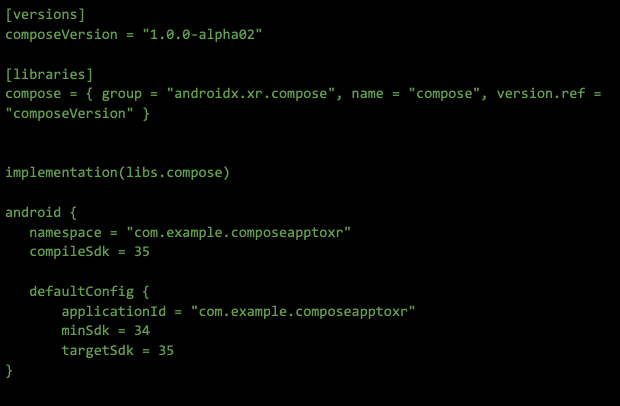
The steps are really straight forward, first we need to add the Jetpack Compose for XR library dependencies:
- androidx.xr.compose:compose which contains all of the composables you need to build an Android XR optimized experience for your app.
In order to be able to use XR the minimum sdk needed is MinSdk = 34
Mobile App Solutions
Create incredible mobile experiences and applications with our App Solutions Studio.Our studio has built stunning mobile applications for some of the world’s best known brands.